
How to Start Using AI in PowerPoint
If you use generative AI to help build a PowerPoint presentation, the results depend almost entirely on how you write your prompts. This guide walks through the core techniques—writing a clear prompt, adding specific detail, and iterating through conversation—so you can go from a blank slide to a usable outline faster.
When we need to make a presentation in a program like Microsoft PowerPoint, we may have an idea of what we want to say, or show, but not how. This is where generative AI (artificial intelligence) can be of assistance. Putting aside the many ramifications and simply considering AI as a tool, there are a few pointers we can learn which will help.
What Is a Prompt?
One is the concept of the prompt. We can think of it as something like the outline we’d write for a term paper, or a research paper. It doesn’t have to be quite as detailed for starters, but giving an AI a foot in the door is in the same ballpark.
“Generate an outline for a presentation on [some subject]” would be okay, but not complete. This is where AI users need to understand there’s more to it. Here’s an example:
Be Specific With Your Prompts
We can type, “Please generate an outline for a PowerPoint presentation on the production of maple syrup.”
The AI responds:
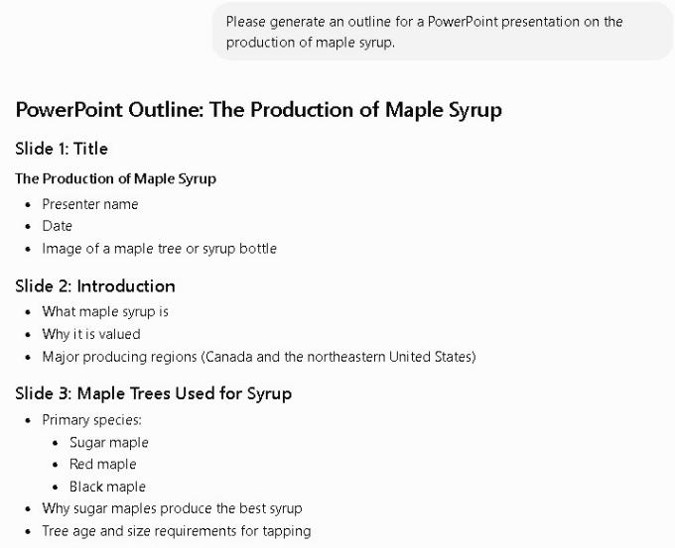
...and the AI continues with a full set of slide titles and bullet points covering the rest of the presentation.
This is a fairly good example of a prompt. The key is to be specific enough that the AI understands unambiguously what the user wants. A prompt like “What can you tell me about maple syrup?” would not really work for this situation.
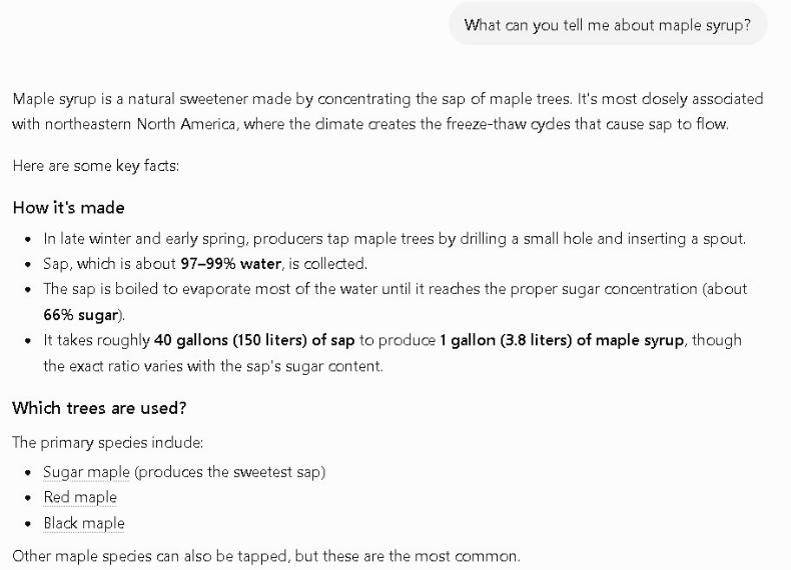
Nor should we type something like “Outline how maple syrup is made”—better, but still vague as far as using PowerPoint.
So one of the techniques for using AI to help build a PowerPoint slide show is to be specific. Key words or phrases—“PowerPoint”, “outline”, “maple syrup”—are helpful, and often necessary.
Add Detail and Parameters
Another has to do with a variation on this point. The more specific we can be, usually, the better. For instance:
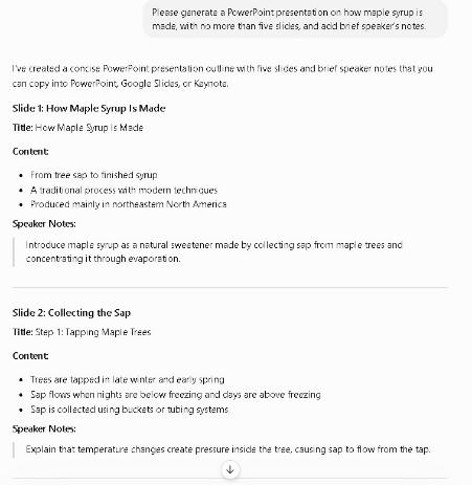
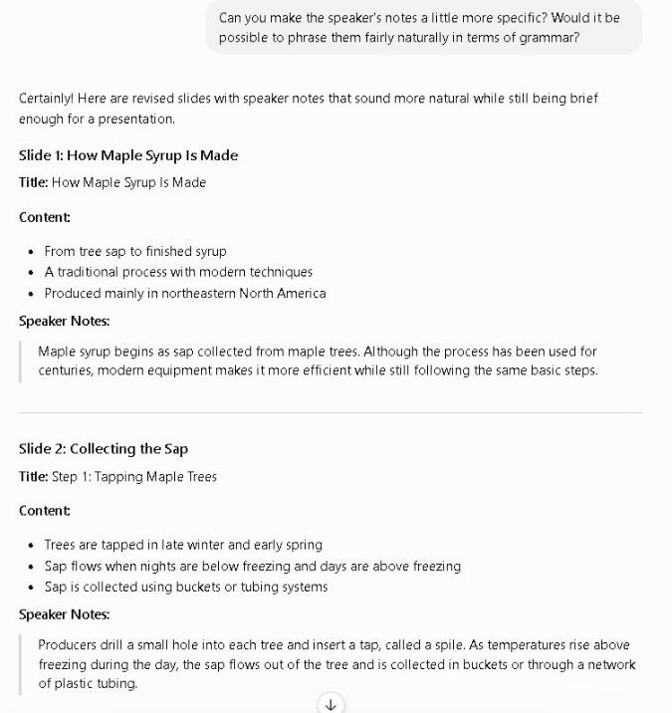
AI continues with three more slides in the same level of detail. This version shows how adding parameters can give us what we want or need more efficiently. If we need the notes to be slightly more detailed, we can iterate, which is simply a term for refining or modifying the content through stages of conversation.
Iterate: Refine Through Conversation
So the next step might be:
Common Pitfalls to Watch For
One of the advantages of current-generation AI is that it’s possible to “converse” with the AI fairly naturally. The main problem some people have noticed is that the AI can occasionally misinterpret grammatical or spelling mistakes—usually the former more than the latter—which means the user has to correct what they’re saying before the more meaningful information can be generated. Right now, this kind of issue is intermittent, because some AI models can “puzzle out” what a person may mean, and sometimes not. So writing clearly is a plus. But for people who are not “producers” of PowerPoint presentations with details, who can figure out a starting point but need help fleshing things out, an AI can be a good assistant.
Getting Started
The next time you open PowerPoint with a blank slide and a vague idea, try writing a prompt the same way: name the format, name the topic, and add the detail you already know you want. Then treat the first response as a draft to refine, not a final answer.